Zoom 101
And a couple of things specific to the way we're using it.
- Zoom works like this: A host schedules a meeting, then invites people
by giving them the meeting number and password, or a link that contains
these.
- If you want to see people's video images, or things being
shared on screen, you'll need to install the Zoom app. Versions exist for Mac, PC, Linux, iOS and Android. If you don't already have Zoom, clicking the Zooms links on the schedule should launch the install.
- You don't need to make a Zoom account (unless you're hosting a
meeting). You don't need one for our event.
- We have 3 Zoom links here at our virtual con, one for each day. We're not posting the password to help avoid Zoombombers. But it's 6 digits, in the format mmddyy and is the original premiere date of our show. Hint: there's a 25 in it.
- Zoom works best with a big screen, but if you don't have a computer or a tablet, or even a cellphone, a plain vanilla land-line is enough to join a Zoom meeting. Pick any of the phone numbers below if You're in the US. (If you're outside the US, there are phone numbers for other countries too.) You'll also need the meeting number and password.

- Using computer audio may be more convenient than using the
phone call option. When your bandwidth is good, the audio quality is
better too. But if the audio sounds garbled, try the phone call option.
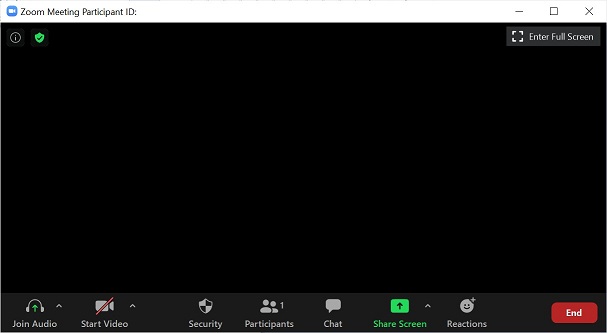
- Once you join the "meeting", your audio and video will likely be off. (That's partly for your privacy and partly in case you arrive during, say, the talent show when someone is singing.) Turn them on using the first two buttons on the left on the Zoom toolbar. The Zoom toolbar is at the bottom of the screen, and it likes to disappear for your convenience (or not, as the case may be!) If you need it, move your mouse to make it appear again.
- Zoom
has a chat window. People without a microphone or who
are having technical difficultes may use the chat window. Turn it on
using the button in the bottom toolbar. Hint: if you're having
technical difficulties, type in the Chat window and we'll see if we can
help you.
Zoom FAQ created by Zoom Support
Back